How To Download & Set Up EpocCam on Windows 7/8/10/11 PC?
In the era of digital communication and online productivity, having a reliable webcam is essential. Whether you're attending virtual meetings, hosting webinars, or live streaming, a good video setup can enhance your online presence. If you don’t want to invest in an expensive webcam, EpocCam offers an affordable and innovative solution. This guide will walk you through how to get and set up EpocCam for your Windows PC, ensuring a seamless and high-quality video experience.
What is EpocCam?
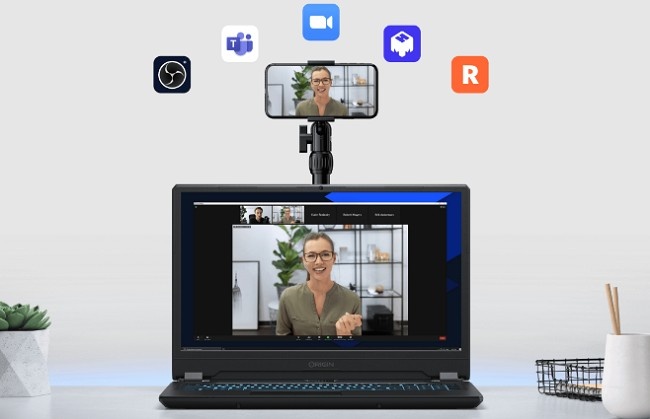
EpocCam is an application that transforms your smartphone into a fully functional webcam for your computer. It’s compatible with Windows PCs and works with major video conferencing platforms like Microsoft Teams, Zoom, Skype, and streaming software like OBS Studio. With EpocCam, you can leverage the powerful camera capabilities of your smartphone to achieve high-definition video output.
Why Use EpocCam on Windows PC?
Using EpocCam on your Windows PC comes with several advantages:
Cost Savings: Skip buying a standalone webcam. EpocCam uses the smartphone camera you already own.
HD Quality: Many smartphones have superior cameras compared to budget webcams, offering clearer and sharper video.
Ease of Use: EpocCam’s setup process is straightforward and quick, with minimal technical knowledge required.
Portability: Use your smartphone as a webcam anytime, anywhere. No need to carry extra hardware.
Versatility: Works with popular apps and supports features like background blur, AR effects, and both front and rear cameras.
Step to Download & Set Up EpocCam for Windows PC
Follow this comprehensive guide to download, install, and configure EpocCam for use on your Windows PC.
Step 1: Check Compatibility
Before downloading EpocCam, ensure your devices meet the following requirements:
Smartphone: iOS device with a camera.
Windows PC: Windows 10 or later.
Wi-Fi Network: Both devices should be on the same Wi-Fi network for wireless connectivity.
USB Cable (Optional): For a wired connection, a USB cable compatible with your phone is required.
Step 2: Download EpocCam on Your Smartphone
Open the App Store on your iPhone or iPad device.
Search for EpocCam by Elgato.
Download and install the app.
Step 3: Download and Install EpocCam Drivers on Windows PC
To ensure your Windows PC recognizes your smartphone as a webcam, you need to install the EpocCam drivers.
Visit the official EpocCam website.
Navigate to the Downloads section and select the drivers for Windows.
Download the installer file.
Run the installer and follow the on-screen prompts to complete the installation.
Restart your computer after installation to ensure the drivers are correctly configured.
Step 4: Connect Your Smartphone to Your PC
EpocCam supports both wireless and wired connections. Choose the one that works best for your setup:
Option 1: Wireless Connection
Ensure your smartphone and PC are connected to the same Wi-Fi network.
Open the EpocCam app on your phone.
Launch the video conferencing or streaming software on your PC.
In the software’s video settings, select EpocCam as your camera source.
Your phone’s camera feed will now appear as a webcam input.
Option 2: USB Connection
Connect your smartphone to your Windows PC using a USB cable.
Open the EpocCam app on your phone.
Launch your preferred video software on your PC.
Select EpocCam as the video input source.
Your smartphone’s camera will now function as a webcam.
Step 5: Configure EpocCam Settings
Once connected, you can customize EpocCam settings for an optimal experience:
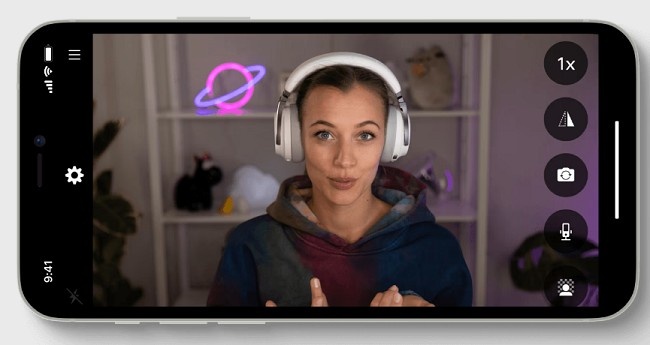
Select Camera: Choose between the front or rear camera on your phone.
Adjust Resolution: In the Pro version, you can enable higher resolutions, such as 1080p.
Enable Audio: If you want to use your phone’s microphone, enable the audio option in the app settings.
Customize Features: Experiment with AR filters, background effects, or zoom controls (available in the Pro version).
Troubleshooting Common Issues
If you encounter problems during setup, here are some common solutions:
EpocCam Not Detected:
Ensure both devices are connected to the same Wi-Fi network or that the USB cable is securely plugged in.
Restart the EpocCam app on your phone and the video software on your PC.
Laggy Video Feed:
Reduce the video resolution in the app settings.
Switch to a USB connection for a more stable performance.
Audio Not Working:
Check if EpocCam is set as the default microphone in your PC’s audio settings.
Ensure the microphone option is enabled in the app.
Driver Issues:
Reinstall the EpocCam drivers from the official website.
Restart your computer after installation.
Benefits of Using EpocCam Pro
While the free version of EpocCam offers great functionality, upgrading to EpocCam Pro unlocks additional features:
Support for Full HD (1080p) video resolution.
Manual camera controls, such as focus and exposure.
Access to AR effects and green screen capabilities.
No watermark on the video feed.
Priority support for troubleshooting.
The Pro version is a worthwhile investment for professionals and content creators who rely heavily on high-quality video.
Tips for Optimizing Your EpocCam Setup
Stable Network: For wireless connections, use a strong Wi-Fi signal to avoid interruptions.
Lighting: Use natural or artificial light to ensure your video is clear and well-lit.
Steady Positioning: Mount your phone on a tripod or stand for a steady and professional-looking video.
Test Before Use: Always test your setup before joining a meeting or starting a stream to address any issues in advance.
Frequently Asked Questions
1. Can I use EpocCam with multiple PCs?
Yes, you can use EpocCam with multiple computers by installing the drivers on each device.
2. Does EpocCam work offline?
Yes, EpocCam supports a wired USB connection, which does not require Wi-Fi.
3. Is EpocCam secure?
Yes, EpocCam uses encryption to protect your video and audio data.
4. Can I use other apps while EpocCam is running?
Yes, but keep the EpocCam app open on your phone to maintain the webcam connection.
Final Thoughts
EpocCam is a powerful and affordable solution for anyone needing a high-quality webcam on their Windows PC. Its flexibility, ease of use, and compatibility with major platforms make it a go-to choice for professionals, students, and content creators alike.
By following this guide, you’ll have EpocCam up and running in no time, ready to enhance your video calls, streams, and virtual events. Download EpocCam today and experience the difference for yourself!