EpocCam Webcam for PC - Free Download on Windows & Mac
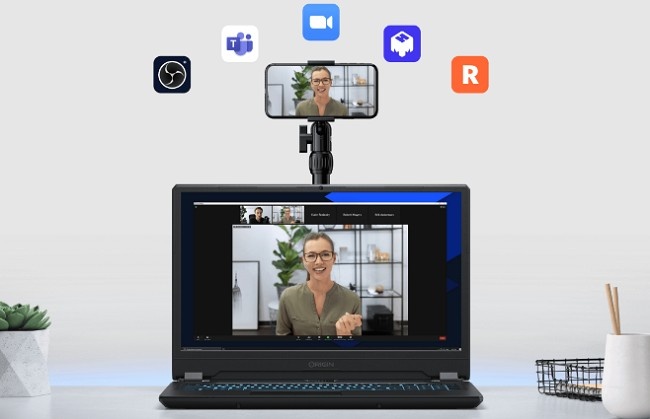
In today’s digital world, the demand for high-quality video communication has never been higher. Whether it’s for business meetings, virtual classrooms, or live streaming, a reliable webcam can make all the difference. However, not everyone has a dedicated webcam or the budget for one. Fortunately, EpocCam offers a smart and cost-effective solution. With the EpocCam app, you can easily turn your smartphone into a high-definition webcam for your PC (Windows) or Mac.
This comprehensive guide will walk you through how to get EpocCam and set it up on both Windows PCs and Mac computers. We’ll cover everything from downloading the app to troubleshooting common issues to ensure a seamless experience.
What is EpocCam?
EpocCam is a mobile app that allows you to use your smartphone’s camera as a webcam for your computer. Available for both iPhone & iPad devices, the app works with both Windows PCs and Mac computers, allowing users to access high-quality video streaming without needing a dedicated webcam.
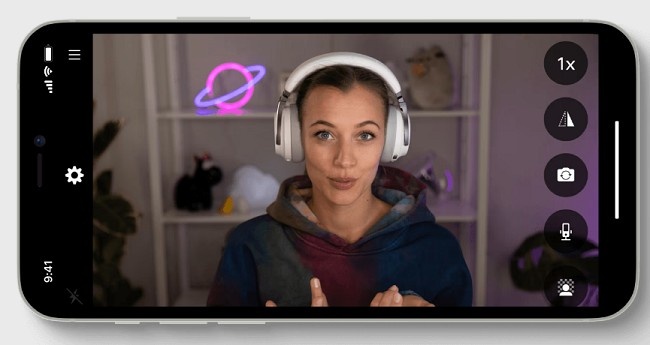
Whether you’re attending virtual meetings, streaming on platforms like Twitch, or participating in online classes, EpocCam ensures that you can look your best. The app offers high-definition video (1080p), wireless streaming, background blur, chroma key effects, and more. Setting up EpocCam is a straightforward process and can be done in just a few minutes.
Requirements for EpocCam Setup
Before diving into the steps, ensure that you meet the basic system requirements for using EpocCam:
For Windows Users:
Operating System: Windows 10 or later
EpocCam Drivers: You will need to install the EpocCam drivers for Windows.
Wi-Fi Network: Both your smartphone and PC should be connected to the same Wi-Fi network for wireless connection (or use a USB cable for wired connection).
USB Cable: If you plan to connect your smartphone via USB, you will need a compatible USB cable.
For Mac Users:
Operating System: macOS 10.14 or later
EpocCam Drivers: You’ll need to install the EpocCam drivers for macOS.
Wi-Fi Network: Both your smartphone and Mac should be connected to the same Wi-Fi network (or use a USB cable).
USB Cable: For wired connection, you’ll need a USB cable to connect your phone to the Mac.
How to Download & Set Up EpocCam for PC Windows?
Step 1: Download and Install the EpocCam App on Your Smartphone
First, you need to install the EpocCam app on your smartphone. Whether you’re using an iPhone or iPad device, you can easily download the app from the respective app store.
For iOS: Open the App Store, search for "EpocCam" and download the app.
Step 2: Install EpocCam Drivers on Your Windows PC
In order for your PC to recognize your smartphone as a webcam, you will need to install the EpocCam drivers.
Go to the EpocCam website: EpocCam Download Page and click on the "Download" button for Windows.
The setup file will be downloaded to your PC. Once the download is complete, double-click the file to begin the installation.
Follow the on-screen instructions to complete the installation of the EpocCam drivers on your Windows PC.
Restart your computer if necessary to ensure the drivers are properly installed.
Step 3: Connect Your Smartphone to Your PC
You can connect your smartphone to your Windows PC using either Wi-Fi or a USB cable.
Option 1: Connect via Wi-Fi (Wireless Setup)
Ensure both your smartphone and PC are connected to the same Wi-Fi network.
Open the EpocCam app on your smartphone.
On your PC, open the video conferencing or streaming software you want to use (e.g., Zoom, OBS Studio, Skype).
Select EpocCam as your webcam in the settings of the software.
Your smartphone will automatically connect to your PC over Wi-Fi, and it will start functioning as your webcam.
Option 2: Connect via USB Cable (Wired Setup)
Connect your smartphone to your Windows PC using a USB cable.
Open the EpocCam app on your smartphone.
Launch your video conferencing or streaming software on your PC.
Select EpocCam as your webcam within the software settings.
Your phone will be recognized as a webcam, and you can begin using it for video calls or streams.
Step 4: Configure Video Settings
Once connected, you may want to adjust your video settings in your software to ensure optimal performance. If you’re using Zoom, OBS Studio, or any other supported software, you can:
Set the resolution to 1080p (HD) for clear and crisp video quality.
Enable features like background blur or chroma key if available (these features are available in the premium version of EpocCam).
Your smartphone camera will now function as a high-definition webcam on your Windows PC, providing professional-grade video for all your needs.
Steps to Get & Set Up EpocCam on Your Mac
Step 1: Download & Install the EpocCam App on Your Smartphone
As with the Windows setup, the first step is to download the EpocCam app to your smartphone.
For iPhone or iPad: Visit the App Store, search for "EpocCam" and install it.
Step 2: Install EpocCam Drivers on Your Mac
Visit the EpocCam website: EpocCam Download Page and select the Mac version for download.
Download the installation file for macOS and double-click the downloaded file to begin the installation.
Follow the on-screen instructions to complete the installation of the EpocCam drivers for Mac.
Once the drivers are installed, restart your Mac to ensure the drivers are properly loaded.
Step 3: Connect Your Smartphone to Your Mac
You can connect your smartphone to your Mac either via Wi-Fi or a USB cable.
Option 1: Connect via Wi-Fi (Wireless Setup)
Ensure both your smartphone and Mac are connected to the same Wi-Fi network.
Open the EpocCam app on your smartphone.
Launch the video conferencing or streaming software (like Zoom, OBS Studio, or Skype) on your Mac.
In the software settings, select EpocCam as your webcam source.
Your Mac will now use your smartphone’s camera as a webcam over Wi-Fi.
Option 2: Connect via USB Cable (Wired Setup)
Connect your smartphone to your Mac using a USB cable.
Open the EpocCam app on your smartphone.
Open your desired video software on your Mac (Zoom, Skype, OBS Studio, etc.).
Choose EpocCam as your webcam in the software’s settings.
Your Mac will now detect your smartphone as a webcam, and you can start using it for video calls or streams.
Step 4: Adjust Your Video Settings
Once your smartphone is connected to your Mac, you can tweak your video settings for the best results. If you're using Zoom, OBS Studio, or another supported app, be sure to:
Set the video resolution to 1080p for high-definition video quality.
Enable features like background blur and chroma key if you have the premium version of EpocCam.
Troubleshooting Tips
While the setup process for EpocCam is usually straightforward, you might encounter some common issues. Here are a few troubleshooting tips to help resolve any problems:
EpocCam Not Detecting the Smartphone: Make sure your smartphone and PC/Mac are on the same Wi-Fi network if you're using a wireless connection. For USB connections, check that your USB cable is properly connected.
Low Video Quality: Ensure that your video software is set to use the highest resolution (1080p) and that your smartphone’s camera lens is clean.
Lag or Connection Delays: If using Wi-Fi, try switching to a USB connection for a more stable and faster video feed.
EpocCam Not Working in Software: Double-check that you’ve selected EpocCam as your webcam source in your video software's settings.
Conclusion
EpocCam is a powerful and easy-to-use tool for turning your smartphone into a high-quality webcam for both Windows PCs and Mac computers. Whether you’re using it for business meetings, online learning, or live streaming, EpocCam offers an excellent solution that delivers HD video and a wide array of features.
By following the simple steps outlined above, you can quickly set up EpocCam and begin using your smartphone as a webcam with your PC or Mac. With features like wireless connection, background blur, chroma key, and Snapchat Lenses (available in the premium version), EpocCam can significantly improve your video conferencing and streaming experience.
Make the most of your smartphone’s camera, and enjoy high-quality, hassle-free video calls with EpocCam today!